Managing Your Bots
The "status" of your bot will determine how your bot functions and whether or not it counts towards the total bot limit in your ChatBlaze account.
Bot Limit:
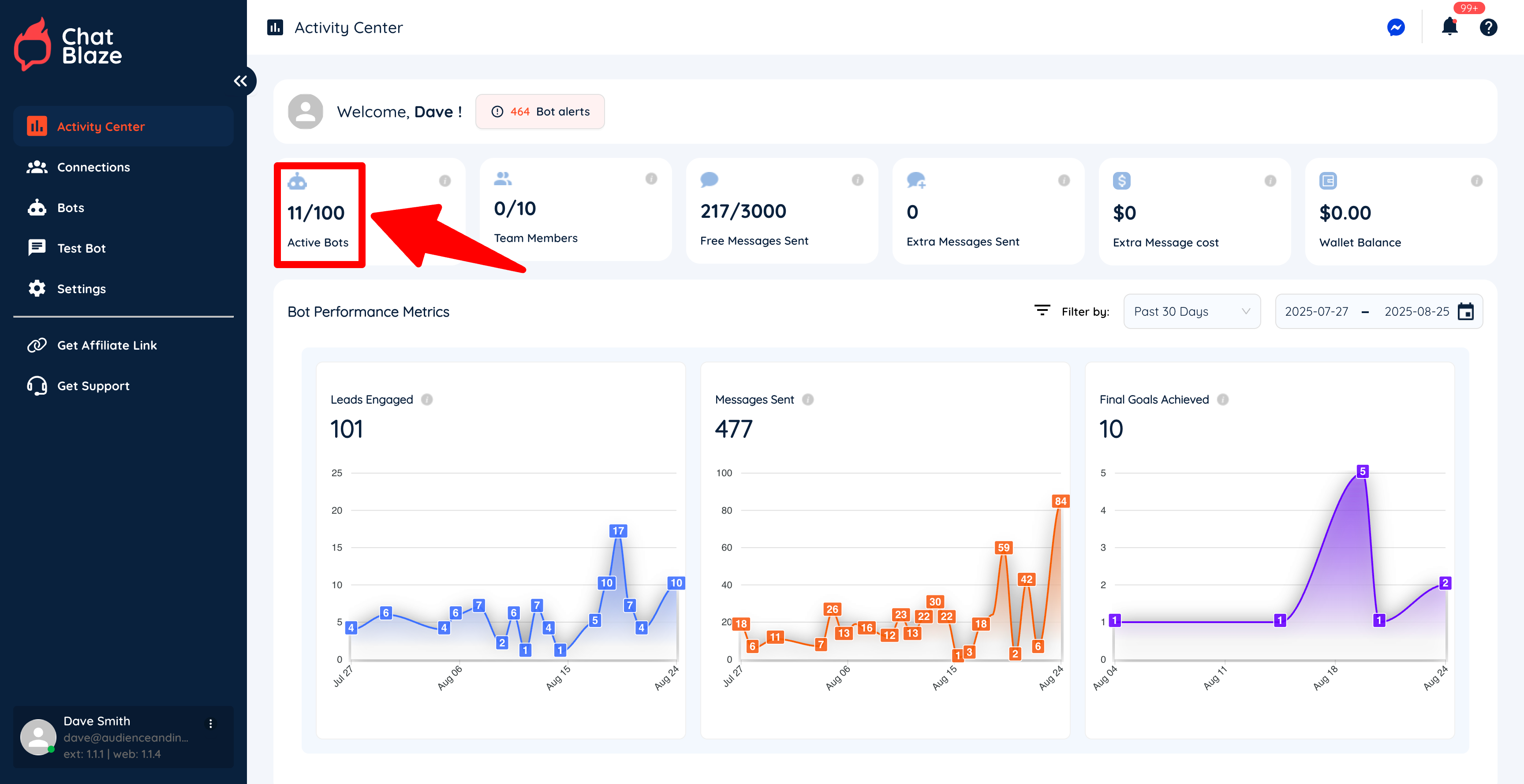
You can find your bot limit from the "Activity Center" inside ChatBlaze. In this example, the account has a limit of 100 active bots. Once you reach your bot limit, you will not be able to publish any more bots.
3 "Status" Options:
Inside your "Bots" tab you will see the status of each of your bots:
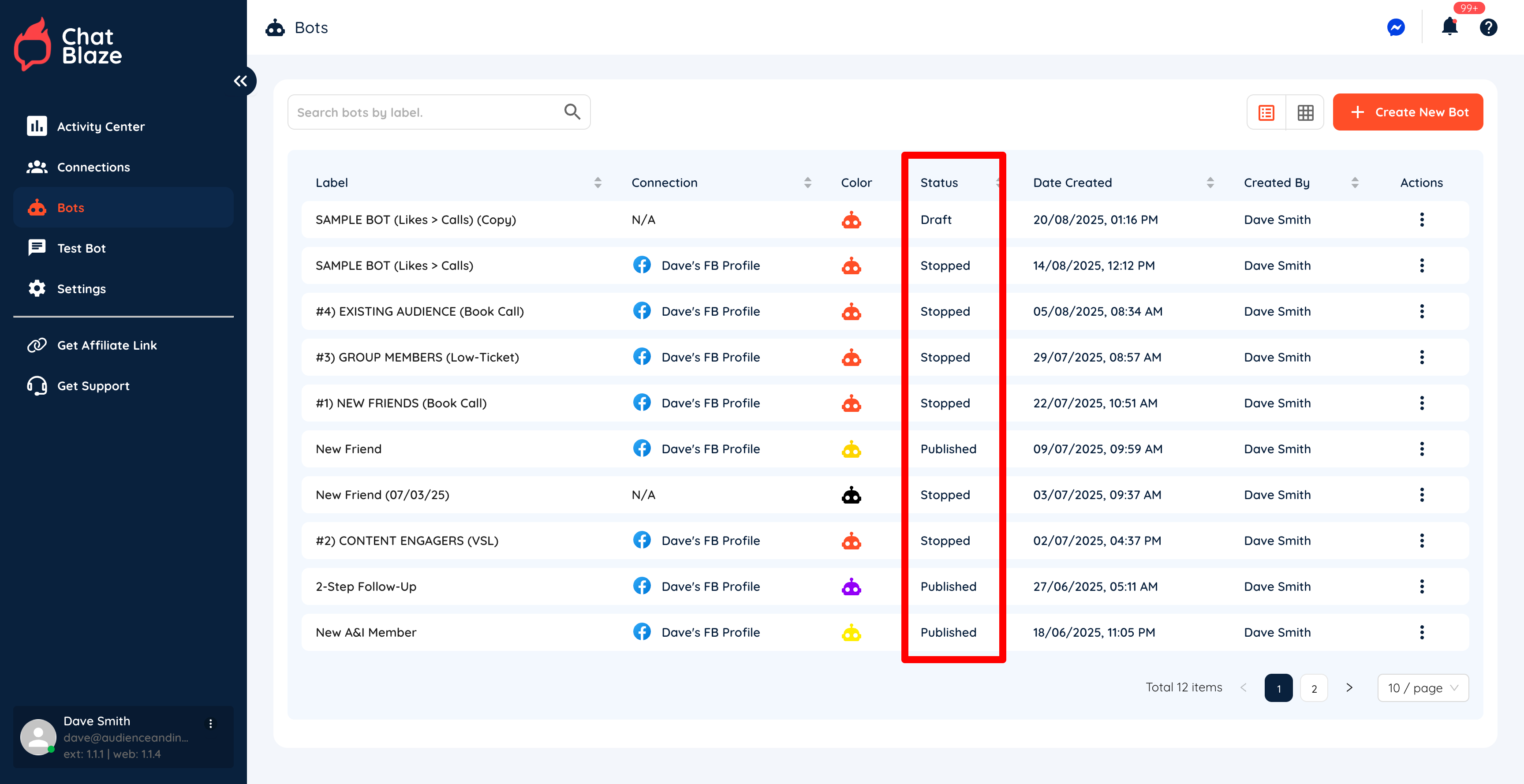
1) "Draft"
If you have never published your bot, it has a "draft" status. This means that it cannot chat with your leads, nor does it count towards the total bot limit in your account.
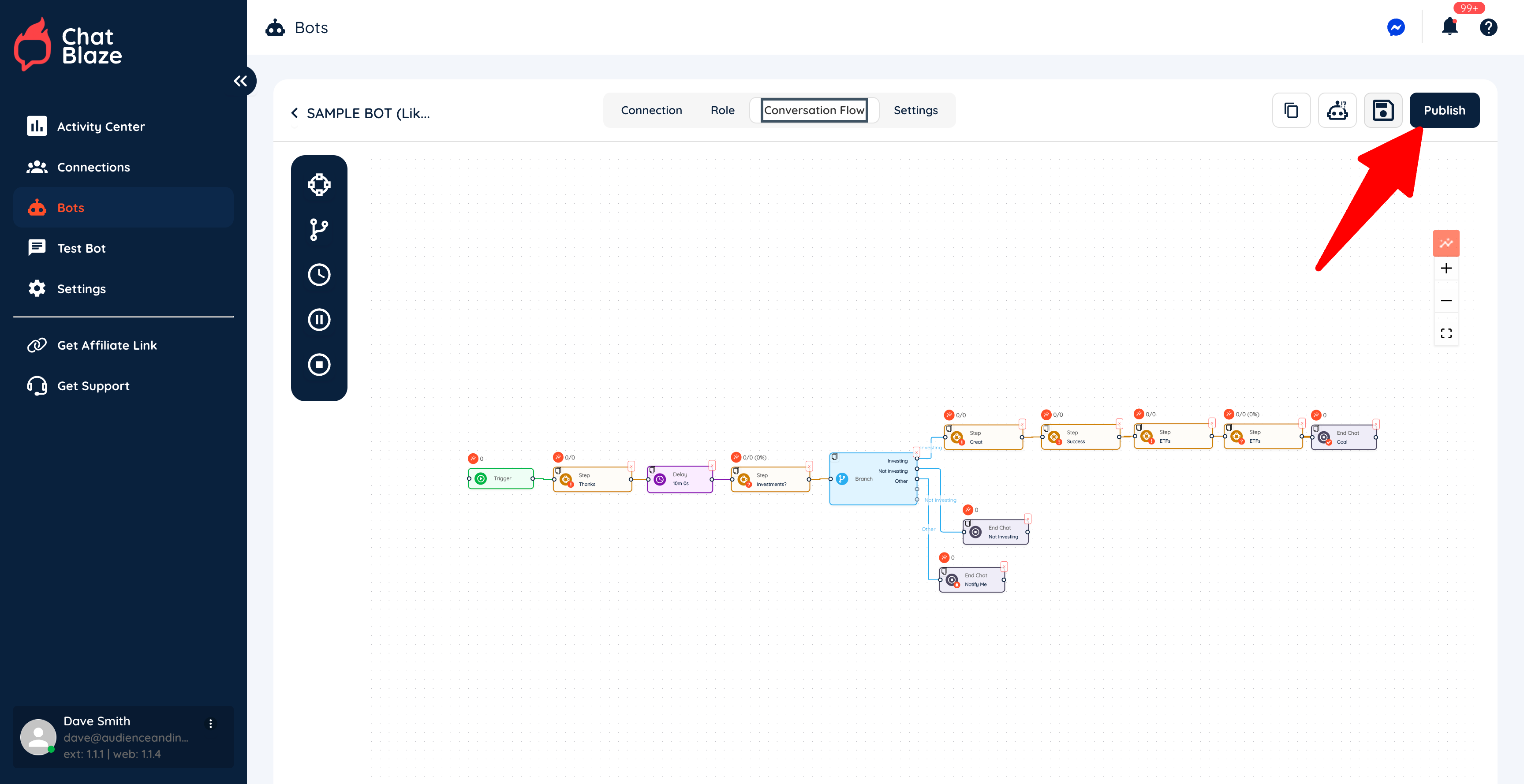
To activate your bot, click the "Publish" button found here:
2) "Published"
Once your bot is published, it can now chat with leads and will count towards the total bot limit in your account. To stop your bot from chatting with new leads, click the stop button:
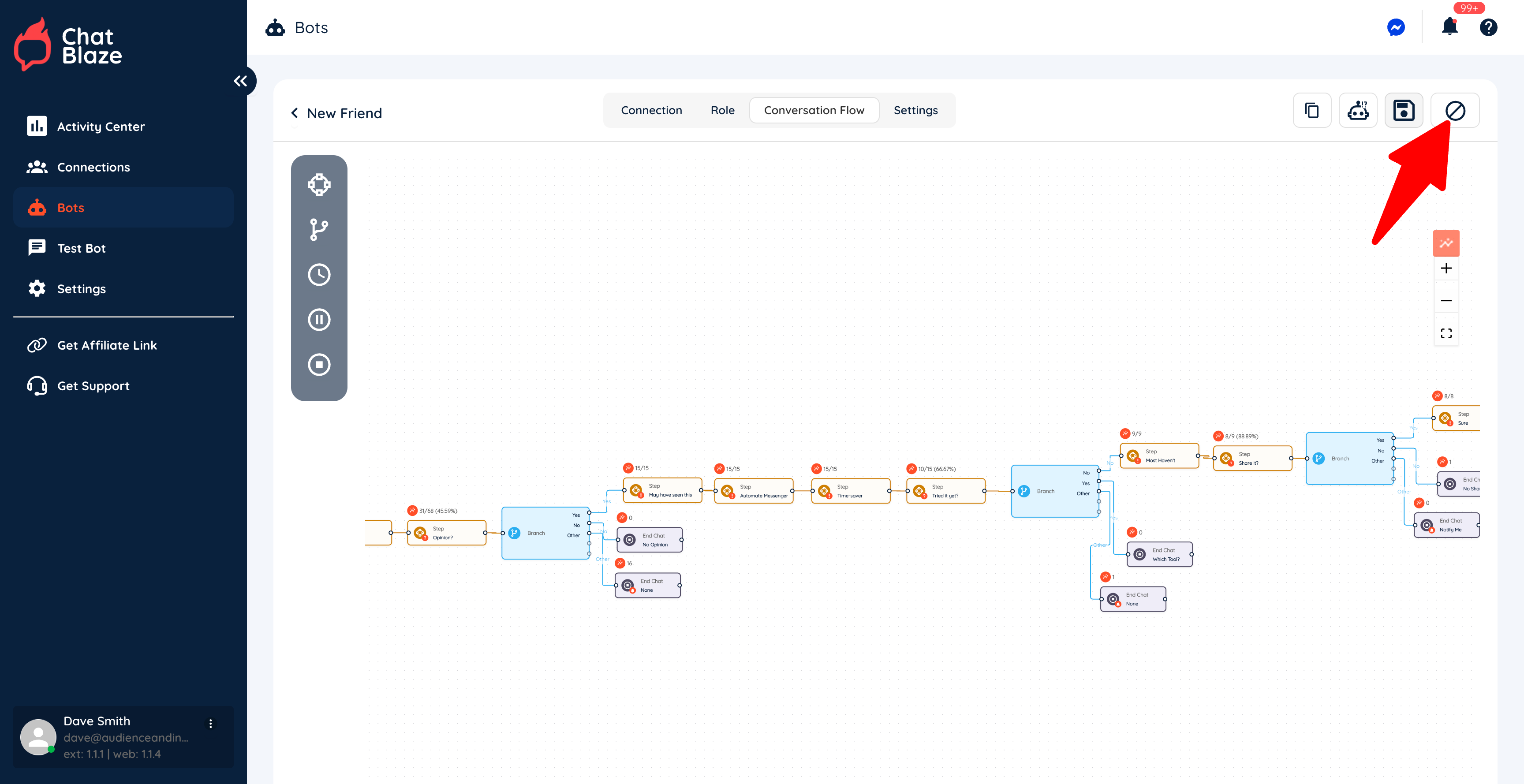
3) "Stopped"
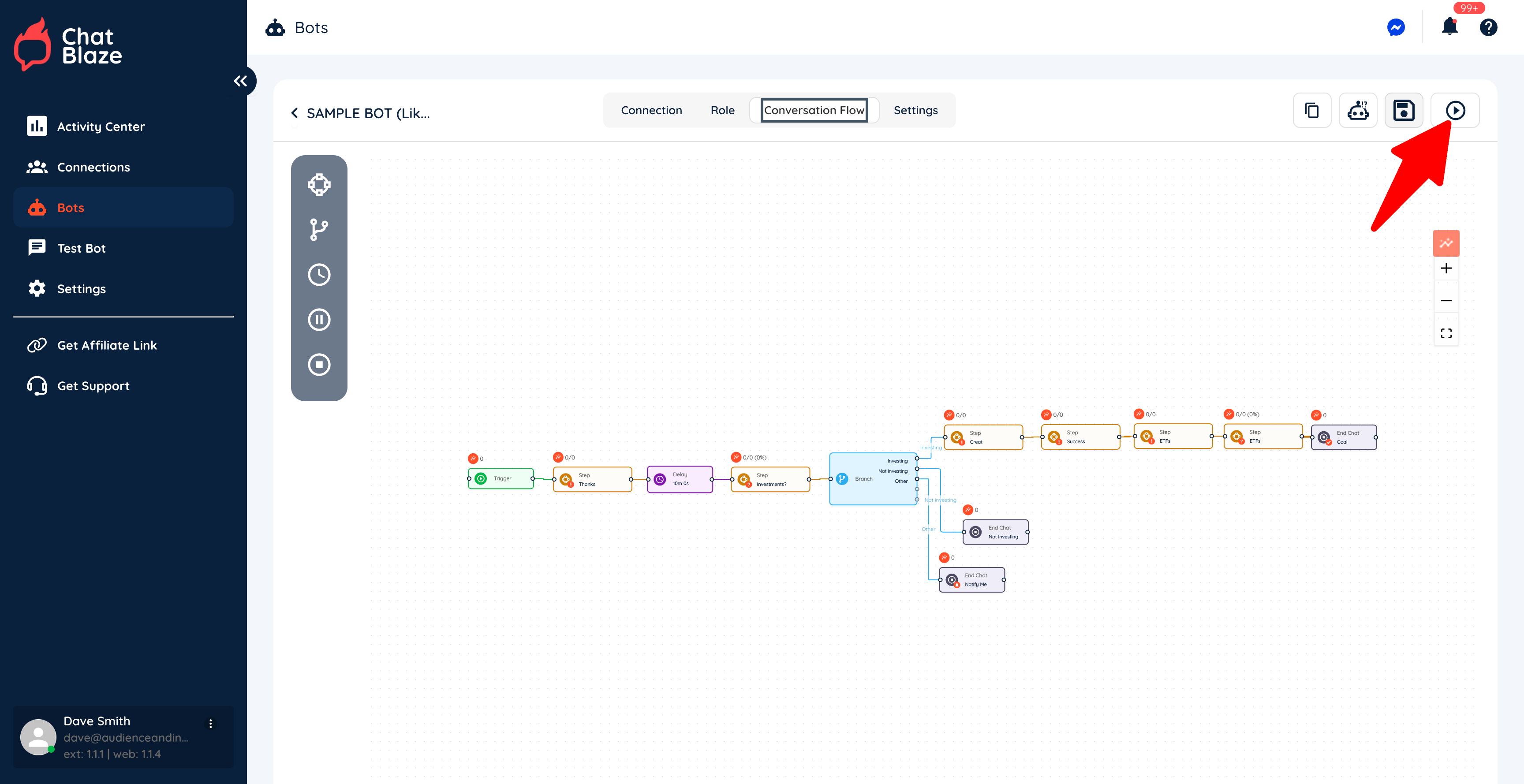
Once your bot is stopped, it will finish conversations with any leads it's already chatting with, but will not start any new conversations. In the "stopped" status, your bot will count toward the bot limit in your account.
If you want to start your bot again so that it will begin conversations with new leads, you can click the play button:
Deleting Bots
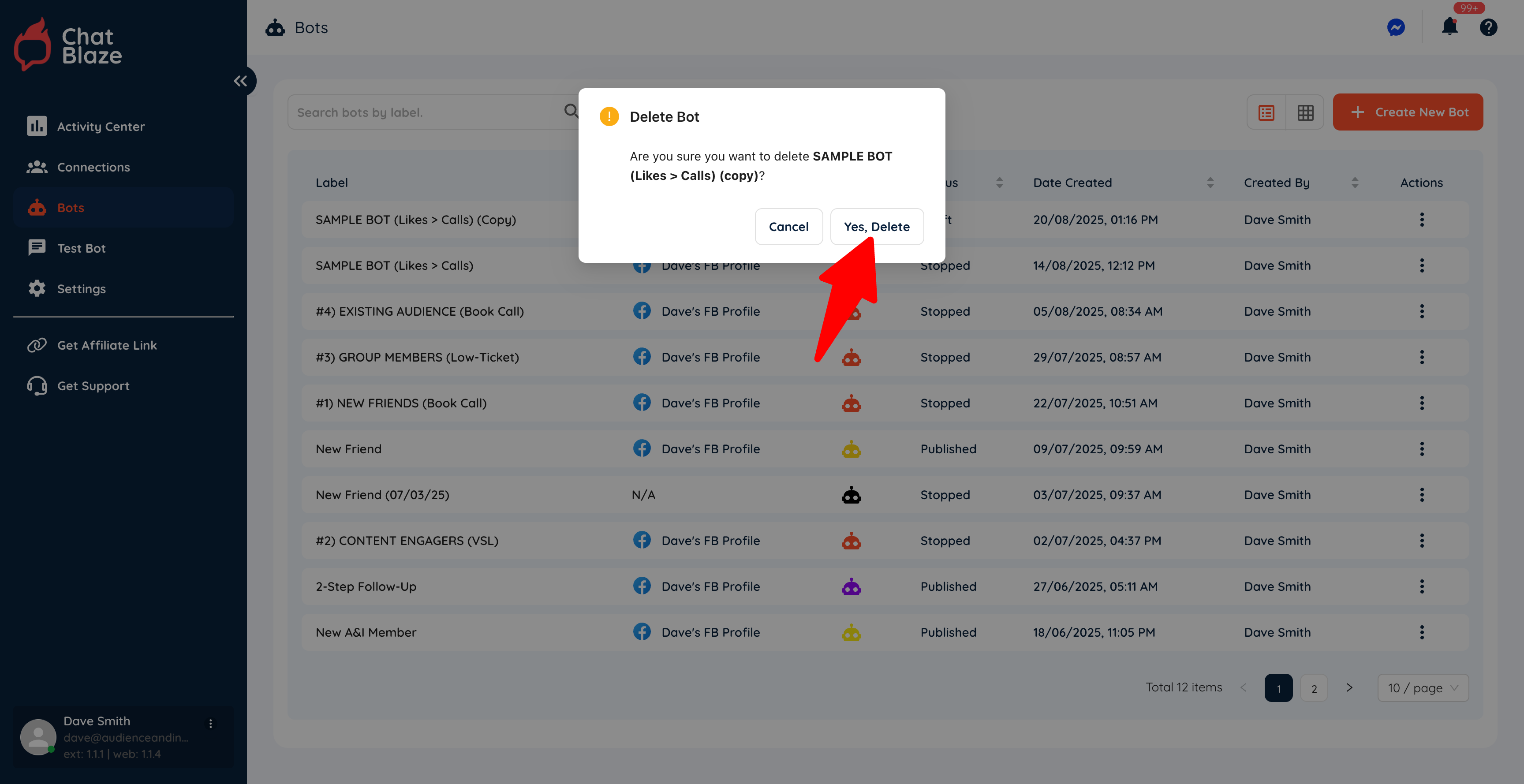
You can delete a bot in any status and it will instantly stop counting towards the bot limit for your account.
From the "Bots" tab, click the 3 dots beside the bot you'd like to delete, then click the "delete" button:
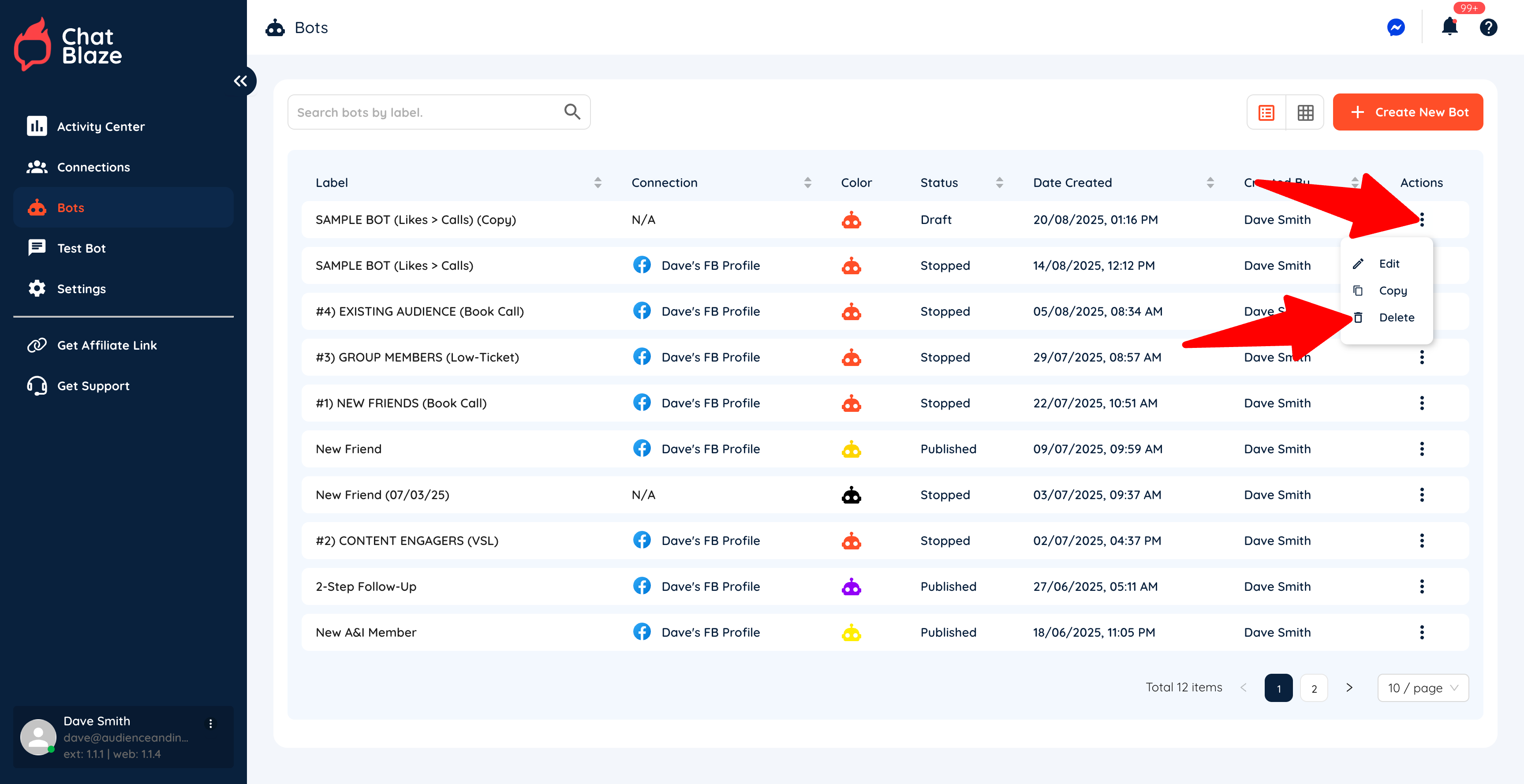
You will be asked to confirm before your bot is deleted: