Using Messenger Filters
InOne powerful way to make sales using ChatBlaze is by using the lead "filters" that are built into your ChatBlaze accountMessenger youwindow. will find a "Sample" bot that illustrates an easy way to turn post "likes" into booked sales calls.
While that sample bot is set up for a business that provides investment products/services, it can work for any niche. The steps, scripts, and even the offer can quickly be modified to suit your business.
Watch the video below to seeHere's how thethey sample bot was built, how its scripts work, how it segments leads, and how it makes an offer to schedule a sales call.
Most importantly, notice how simple this bot is. When it comes to building bots that actually achieve their intended goal (i.e. booking sales calls in this case), simpler is almost always best.work:
Using Messenger Filters:
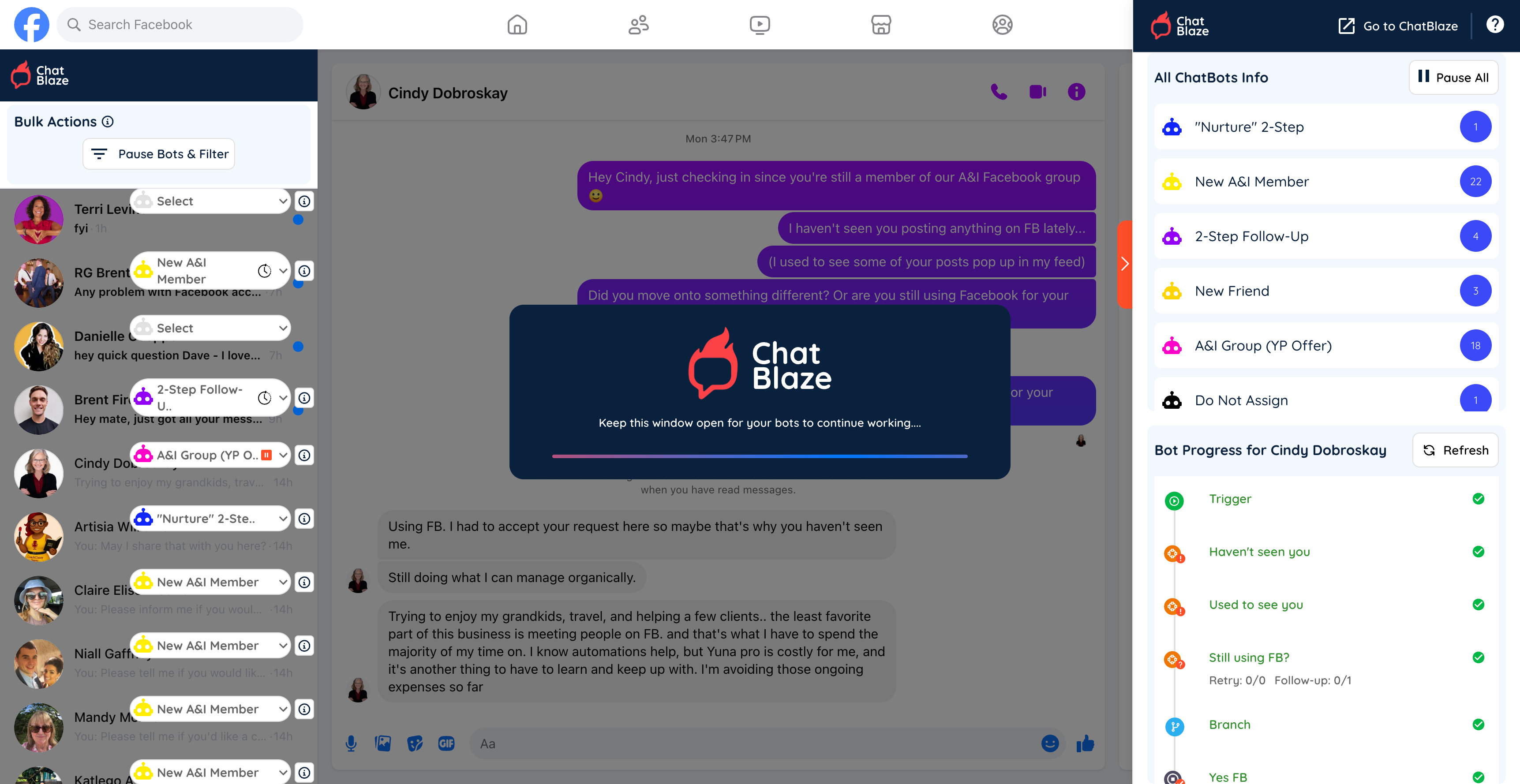
1) Open your ChatBlaze Messenger window.
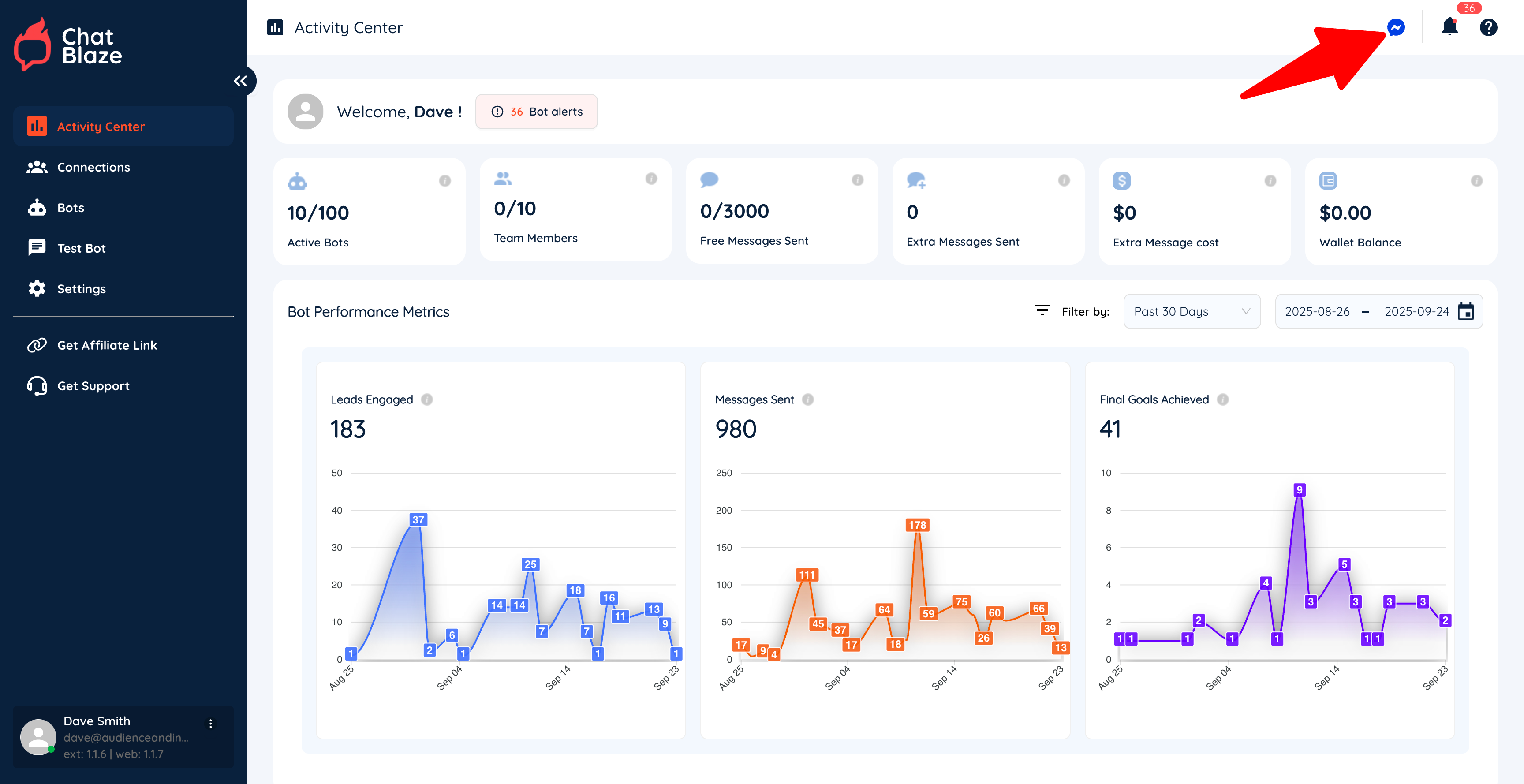
2) Click the "Pause Bots & Filter" button.
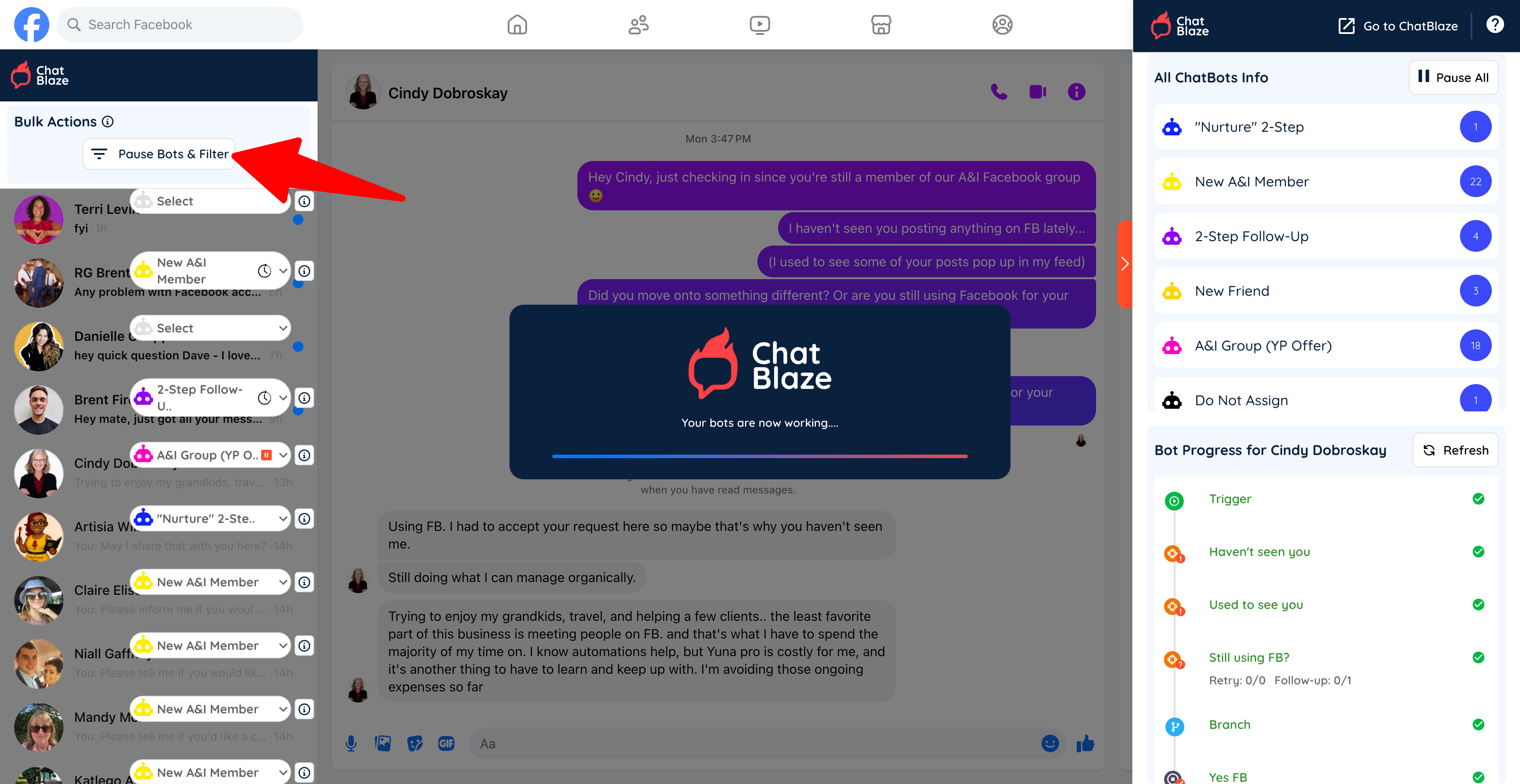
3) Click the Filter icon and then choose up to 3 filters to apply to your leads.
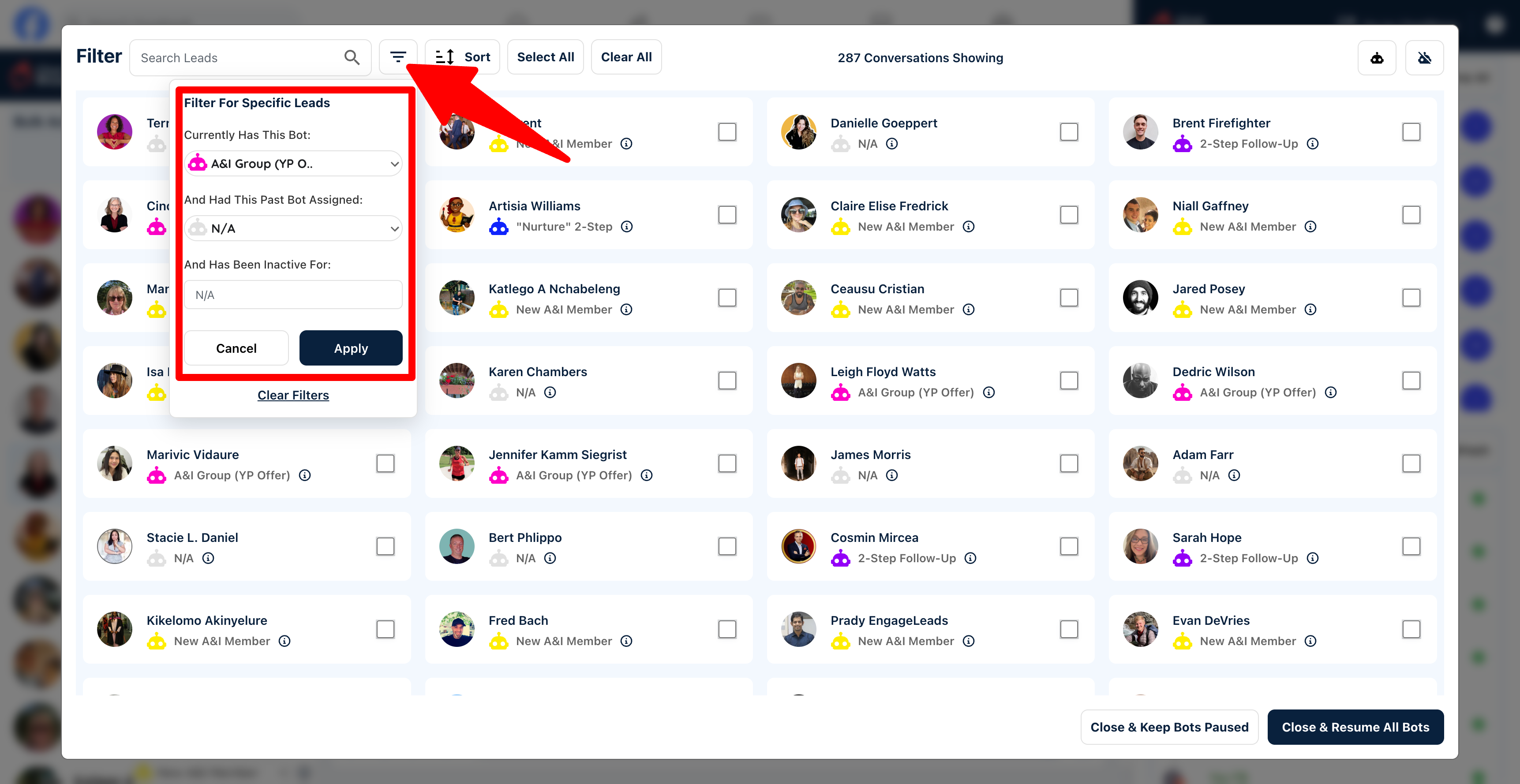
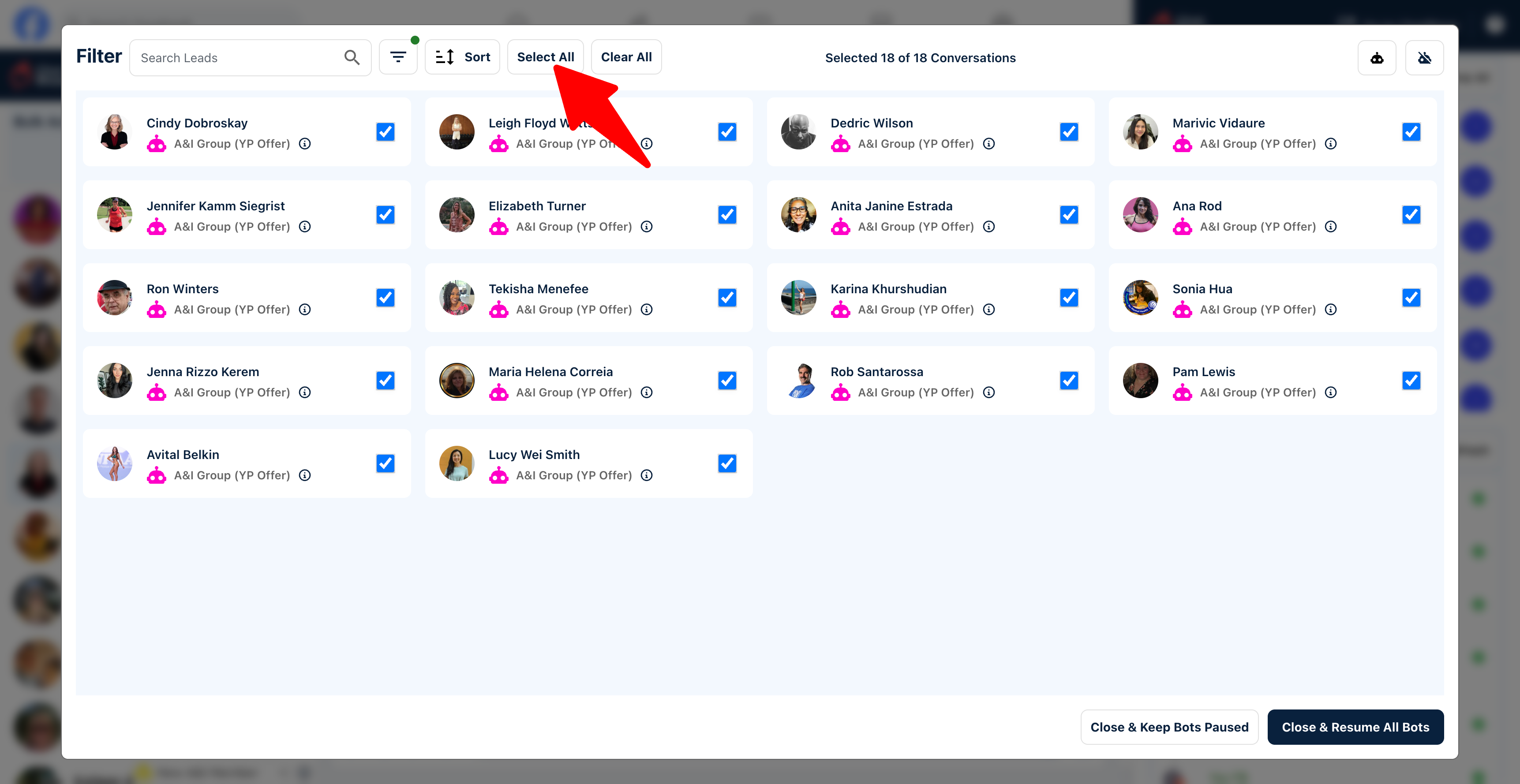
4) Select your leads manually by clicking the box next to their photo or use "Select All" to select every lead.
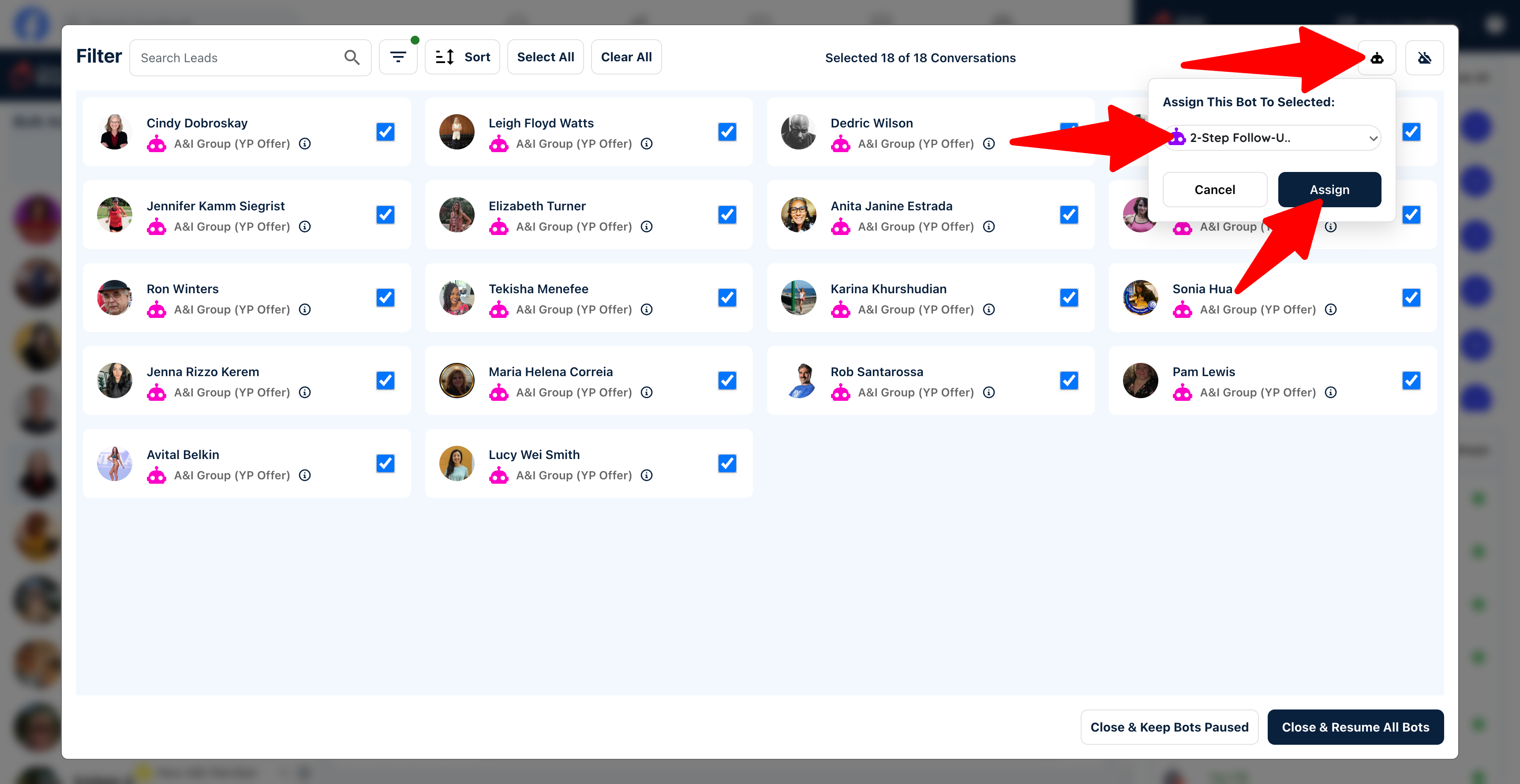
5) Click the icon to assign a bot to these leads, then choose the bot you want to assign from the drop-down menu. Note: As soon as you click "Assign" the bots will be assigned, so make sure you've chosen the correct bot.
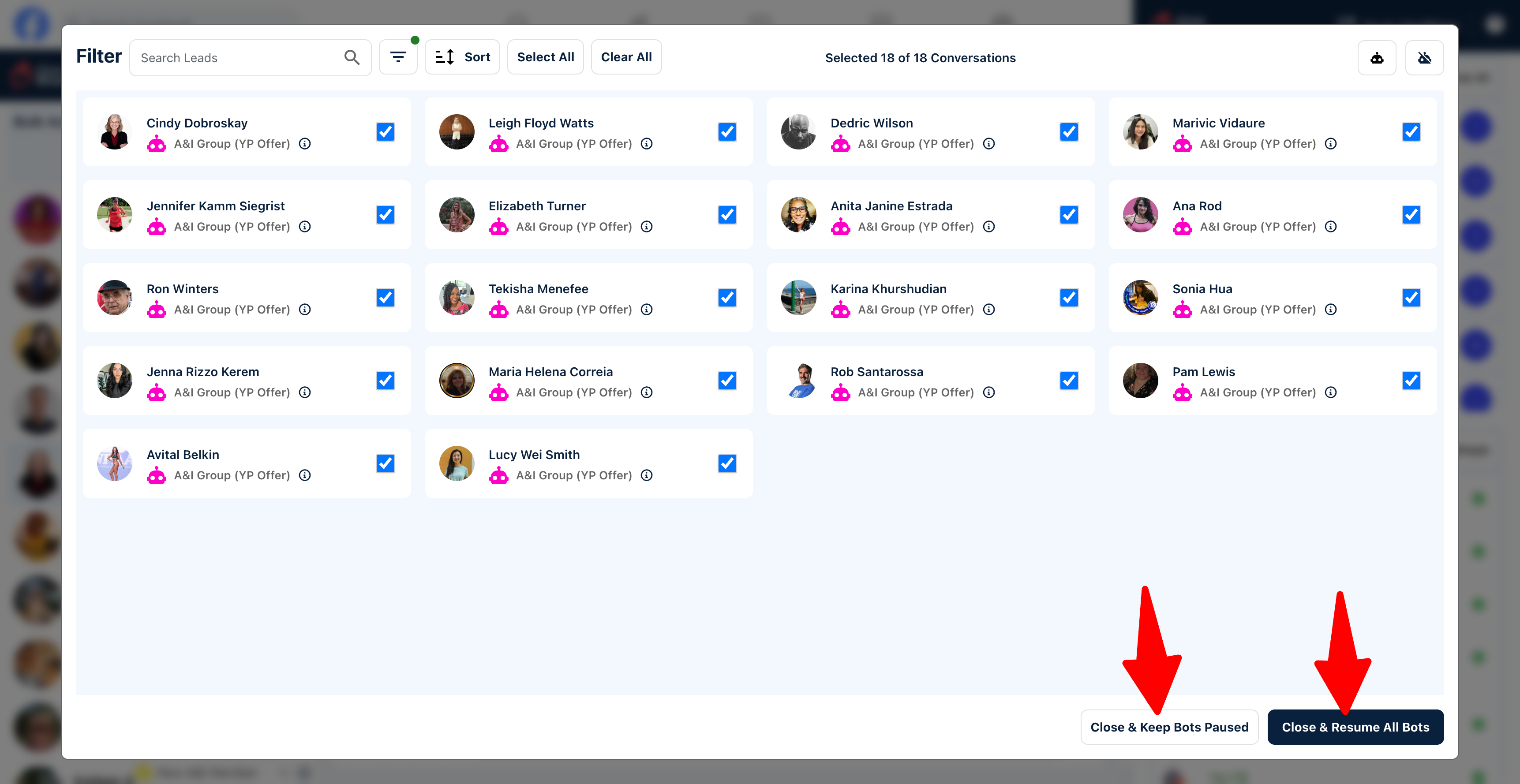
6) After assigning your bots, either close the pop-up window and keep your bots paused, or close and resume all bots.
7) If you chose to keep your bots paused, you can resume them at any time by clicking the "Resume All" button inside Messenger.
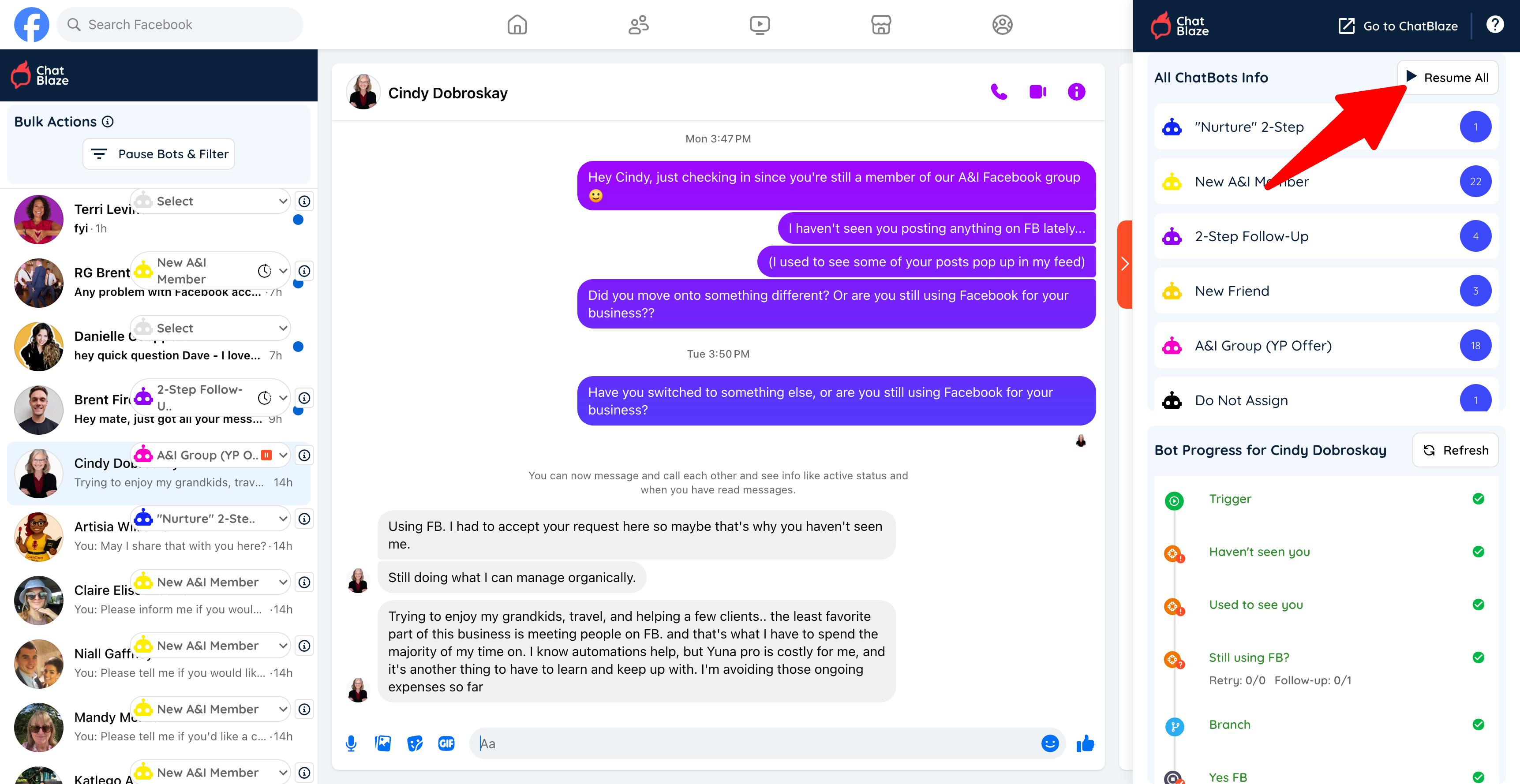
8) Once resumed, your bots will begin chatting with the leads they are assigned to.